# How to Use Excel: Cells, Formulas and Cell References
A cell holds a value or a formula, formulas point at other cells by address, and copying moves those pointers — here's how each part works and when to lock a reference with $.
> cell references · absolute references · excel formulas · About 6 min · Nov 3
## Key points
1. A cell holds either a value you typed or a formula, and the formula bar is the only reliable way to see which.
2. A formula's references are stored as positions relative to the formula cell, so copying the formula shifts them by the same amount.
3. Relative references make one formula work down a whole column; that same behaviour makes it silently wrong when the formula should keep reading one fixed cell.
4. Adding $ locks the column, the row, or both: $G$1 never moves, $G1 keeps its column, G$1 keeps its row.
5. Use a plain reference by default and add $ as soon as a copied formula must keep pointing at a specific cell such as a rate or a target.
6. F4 cycles a selected reference through all four forms, but not in Excel for the web; a column of zeros or identical values usually means a reference that moved.
---
Most people learn Excel by copying what a colleague did: click here, drag that, and hope the number comes out right. That works until you copy a formula one row further than last time and get a column of zeros with no warning at all.
There is a smaller mental model underneath all of it. A cell holds either **a value you typed** or **a formula that points at other cells**. A formula stores those pointers as positions relative to itself, so moving the formula moves the pointers. Once you see that, Excel stops being a set of clicks and starts being predictable.
This article builds one small timesheet from an empty workbook and uses it to show the three things that decide whether your formulas work: what a cell contains, how a formula names other cells, and when to lock a reference with `$`.
You need Excel (Microsoft 365, Excel 2021/2024, or Excel for the web) and ten minutes. Nothing else.
## What a cell holds: a value or a formula
Every cell is named by its column letter and row number: `A1` is the first column, first row. That address is how formulas refer to cells.
The important distinction is between what a cell **shows** and what it **contains**.
- Type `420` and press Enter: the cell holds the number 420. That is a value. It will never change on its own.
- Type `=B2*C2` and press Enter: the cell holds a formula. The grid shows you the result, but the formula is what's stored.
Select a cell and look at the formula bar along the top. For a typed value, the formula bar shows the same thing the cell shows. For a formula, the formula bar shows the instruction — the real contents — while the cell shows only the outcome. This is the single most useful habit in Excel: **when a number looks wrong, click it and read the formula bar.**
A quick way to see every formula at once: press Ctrl+` (the grave accent, above Tab). Cells switch from showing results to showing their formulas. Press it again to switch back. It's a toggle, not a command, so nothing is damaged.
## Build the sheet: your first formulas
Create a new workbook and type this in, one cell at a time. Press Enter after each entry.
| | A | B | C |
|---|---|---|---|
| **1** | Person | Hours | Rate |
| **2** | Ada | 12 | 35 |
| **3** | Ben | 8 | 35 |
| **4** | Chen | 15 | 42 |
| **5** | Dana | 10 | 42 |
Column D will hold the amount owed. In `D1`, type `Amount`. In `D2`, type:
```
=B2*C2
```
Press Enter. `D2` should show `420`. A formula starts with `=`, which is how Excel knows to calculate rather than store what you typed.
Now put a total under the column. Click `D7` and type:
```
=SUM(D2:D6)
```
`D2:D6` is a **range**: two cell addresses with a colon between them, meaning everything in that rectangle. Your total comes out as 0 for now, because D3 to D6 are still empty. That will change in the next step.
## Copying a formula moves its references — usually what you want
You could retype `=B3*C3`, `=B4*C4` and so on, but that's how typos get in. Instead, copy `D2` down.
Click `D2`, then drag the small square at the bottom-right corner of the selection (the fill handle) down to `D6`. Alternatively, select `D2:D6` and press Ctrl+D to fill down.
Check `D7`: it should now read `1750` (420 + 280 + 630 + 420). Click `D4` and read the formula bar — it says `=B4*C4`, not `=B2*C2`. Excel rewrote the row numbers for you.
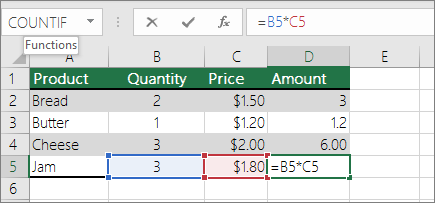
That is what a **relative reference** means, and Microsoft's documentation spells out the rule: a reference is stored as a position relative to the cell holding the formula, and when you copy the formula, the reference shifts by the same amount the formula moved [1]. In `D2`, `B2` means "two columns to the left, same row." In `D4`, the same relative position is `B4`.
This is a feature, not a quirk. One formula, copied down five thousand rows, stays correct on every row — which is the entire reason spreadsheets are useful.
## The silent wrong answer: when a reference should not move
Now suppose you need a second column that converts the amounts to euros, and the exchange rate lives in one place. That's where relative copying turns against you.
1. In `F1` type `EUR rate`, and in `G1` type `0.92`.
2. In `E1` type `Amount (EUR)`.
3. In `E2` type `=D2*G1` and press Enter. `E2` shows `386.4` — correct.
4. Copy `E2` down to `E6`.
Look at the column. `E3` shows `0`, and so does everything below it.
Click `E3`. The formula bar says `=D3*G2`. `G2` is empty, so Excel multiplies by zero. Nothing was mistyped — every step was reasonable — but you got a wrong answer with no warning, because the reference to the rate was relative and moved along with the formula.
Excel only complains when it cannot compute at all. `#DIV/0!` means a division by zero or an empty cell; `#NAME?` means it doesn't recognise something in the formula, usually a misspelled function; `#REF!` means the cell being pointed at no longer exists. A wrong-but-computable answer like the zeros above produces none of these. Silence is not proof of correctness.
## Lock a reference with $ when it must stay put
You fix this by telling Excel that `G1` is a fixed location, not a relative position. An **absolute reference** adds dollar signs to the parts that should never shift: `$G$1`.
- `G1` — both parts free (relative): moves down when copied down.
- `$G$1` — both parts locked (absolute): always points at `G1`.
- `$G1` — column locked, row free (mixed).
- `G$1` — row locked, column free (mixed).
So `E2` becomes:
```
=D2*$G$1
```
Copy that down and every row multiplies its own `D` value by the one rate in `G1`. The `D` reference still shifts row by row, because that's what you want; only the rate is frozen.
To convert an existing reference instead of retyping, select the formula cell, click the reference inside the formula bar (or put the cursor right after it while editing), and press F4. It cycles through the four combinations: `G1`, `$G$1`, `G$1`, `$G1` [2]. One caveat from Microsoft's own tips page: this shortcut doesn't work in Excel for the web, where you type the `$` signs by hand [3]. Also note that `F4` pressed outside a formula repeats your last action instead — a small thing that confuses people the first time it happens.
### When you need the half-locked versions
Mixed references look academic until you build a small rate grid. Say column A holds the units sold by each person and row 1 holds three different rates. In `B2`, type:
```
=$A2*B$1
```
Copy it right and down, and every cell multiplies its own row's units by its own column's rate: `$A2` keeps the units in column A, and `B$1` keeps the rate on row 1. That's the case the mixed forms exist for.
**The decision rule:** write a normal reference by default. The moment a formula will be copied and needs to keep reading one specific cell — a rate, a target, a threshold, a total at the top of the sheet — lock it with `$`.
## How to check that your formulas are right
Three habits catch almost every mistake in this article:
1. **Click a copied cell in the middle of the range, not the first one.** Read the formula bar and ask whether each reference points where you meant. The first cell is always right; it's the copies that drift.
2. **Press Ctrl+`.** Seeing all formulas laid out side by side makes a stray `G2` obvious. Press it again to return to normal view.
3. **Recompute one row by hand.** 12 × 35 = 420, and after conversion 420 × 0.92 = 386.4. If a spot check matches, the pattern probably holds.
If a whole column of results is zero, identical, or wildly larger than expected, suspect a reference that moved when you copied. That single symptom explains more broken spreadsheets than any mistyped number.
## Mind map
```mermaid
flowchart LR
A["A cell holds a value or a formula"] --> B["Formula names other cells: B2, D2:D6"]
B --> C["Copy the formula"]
C --> D["Relative reference shifts: B2 becomes B3"]
C --> E["Locked with $: $G$1 stays put"]
D --> F["Correct for a column of rows"]
D --> G["Silent wrong answer: column of zeros"]
G --> E
E --> H["Decision rule: lock any cell that must stay fixed"]
H --> I["Check with the formula bar and Ctrl+grave"]
```
## Glossary
- Cell reference:the address made of a column letter and row number, such as C4, used inside a formula to point at another cell.
- Formula vs value:a value is what you typed and never changes; a formula is a stored instruction that recalculates, and the grid only shows its result.
- Relative reference:a reference stored as a position relative to the formula cell, so it shifts when the formula is copied.
- Absolute reference:a reference with $ on column and row, such as $G$1, that keeps pointing at the same cell no matter where the formula is copied.
- Mixed reference:a reference with only one part locked, such as $G1 or G$1, used when a formula should follow a row but not a column, or the reverse.
- Range:two addresses separated by a colon, such as D2:D6, meaning every cell in that block.
## Sources
1. [Microsoft Support: Switch between relative, absolute, and mixed references — how references shift when a formula is copied](https://support.microsoft.com/en-us/excel/switch-between-relative-absolute-and-mixed-references)
2. [Microsoft Support: Keyboard shortcuts in Excel — what F4 does inside a formula and outside one](https://support.microsoft.com/en-us/accessibility/excel/keyboard-shortcuts-in-excel)
3. [Microsoft Support: Formula tips and tricks — includes the note that the F4 reference tip does not apply to Excel for the web](https://support.microsoft.com/en-us/excel/formula-tips-and-tricks)
---
Original article: https://eulore.ai/articles/how-to-use-excel-5a9f3a0a
> **Eulore** · Start small. Go deep.
>
> Eulore is an AI learning tool built around connected articles, each a 5–10 minute read. Ask questions as you go and help shape what comes next. That’s how this article was created.
>
> Start your own series → https://eulore.ai